You know, I haven’t made many things this year. I realize that. I don’t wonder at it, though… because I have something amazing unfolding before my eyes every day.






And it’s beautiful.

You know, I haven’t made many things this year. I realize that. I don’t wonder at it, though… because I have something amazing unfolding before my eyes every day.
And it’s beautiful.
You know what’s fun? Silhouettes. They’re simple, but interesting, with a splash of vintage nostalgia thrown in for good measure. I remember making silhouettes as a child, tracing the outline of my sister’s face on black paper by the light of a lamp turned on its side. These days, anyone with some decent photo manipulation software and a picture can turn out a creditable silhouette without breaking out the scissors.
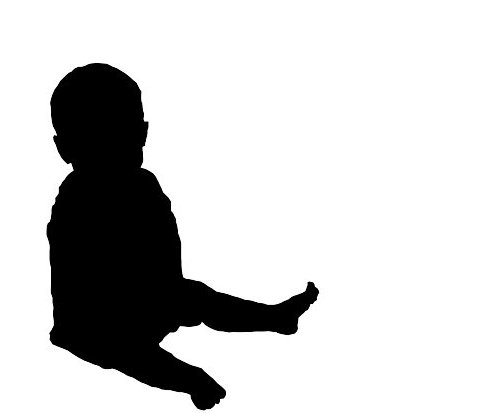
Photoshop is the standard; I use GIMP – because it’s free. It’s just as powerful as Photoshop, but there’s a bit more of a learning curve, I think. However, if you want to make a silhouette, there are just a few simple steps to follow.
First, choose your photo. A sharp, clear photo with good contrast is best, but you’ll be selecting your outline manually (rather than using an automatic selection tool) so as long as you can see the outline you want to use, it’s fine. Make sure you pick something with an interesting outline – profiles look better than full face shots, and body shots look better if you can see individual limbs.
This is the photo I chose:

Teddy is such a good sitter. As you can see if you look back up at the finished silhouette, I probably should have chosen a photo where the arms were more visible. It doesn’t look bad, but it doesn’t look as good as it could.
Now: go to Windows > Dockable Dialogs > Layers (or push Ctrl + L) to open the Layers window. Click the ‘folded paper’ button on the bottom left to create a new layer, selecting a transparent fill type. Create another new layer; now you have three.
Make sure you have the top layer selected, and click on the ‘Paths’ tool (the pen with the square-dotted line beside it). Now comes the time consuming part: click around your picture to select the outline. The more points you add, the less choppy it will look. When you’ve finished, push enter to close the path.
Over on the Toolbox bar, click ‘Selection from Path.’ Select the Fill bucket and fill your selection with black. Now select the middle layer and fill it with white. Look!
You’ve finished, and it looks great.
Tips:
I can think of all kinds of fun things to do with photo silhouettes – especially since my kids won’t sit still for paper-and-shadow ones. I’d love to do a silhouette of each of my children and frame them on the wall, but I can’t help thinking there should be craftier applications.
What about you? Can you think of anything cool to do with a silhouette?
There’s really not much to it.
You will need:
First, split your cake batter between two loaf pans and bake until done. I used my small one (8.5 x 4.5 inches) because a smaller area gives you more height. For the other I had to use a regular loaf pan – more like 5 inches? It doesn’t matter too much, these are not technical specifications. Once they’re done, turn them out to cool.

I wanted to raise my cake off of the tray slightly, to leave room for the wheels. I wrapped a box of Rice-a-Roni in waxed paper, but that turned out to be a little thick; I’d have been better off wrapping a few layers of cardboard to raise the cake about half an inch.
Next, stick your cake pieces together. I put the flat sides to the outside (top and bottom) and stuck the uneven top sides together, without leveling. I’m a heretic, I know.

This involved a lot of frosting. (If you’re using premade frosting, as I was – I know! Heretic! – giving it time to sit out helps it dry and solidify to hold a little better.)

Then I coated the whole shebang with some groovy blue-green frosting. (To get that ‘vintage’ turquoise shade, color it a medium blue and add some green. I colored an entire tub and had leftovers, but your mileage may vary.) As you can see, it’s starting to look a little van-like now. I told Greg this was what the Mystery Machine looks like after forty years. Paint job faded, up on blocks…sad.

With white from the second tub, add windows, headlights, bumpers, and the luggage rack on the top.

Next, color the second tub a lime green by adding a little yellow to your green. Your ‘spare tire’ Oreo will NOT stay on with frosting alone; this is an easy fix, however. Take a toothpick and drive it halfway through the cookie (so the tip is in the filling and not sticking out the front) and then poke it into your cake like a thumbtack. A delicious, unhealthy thumbtack. Cover it in green, and pipe green in appropriate designs around the sides of your Mystery Machine.

Using the same technique, attach the tires. With your little orange tube, add flowers to the tires and the van, and either write the appropriate number (if you run out of time and energy, like I did), or go for the gold and write “The Mystery Machine” on both sides of your sugary van.
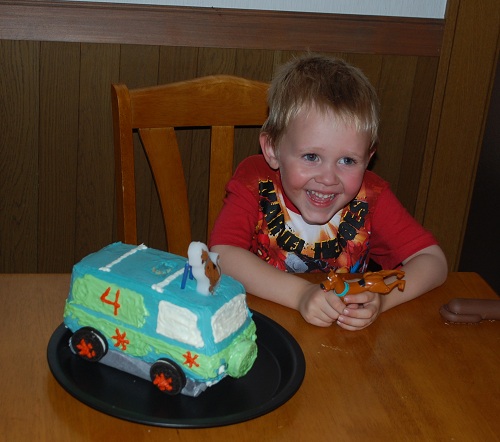
There! You did it! You made an amazing custom cake without special pans or equipment, with only rudimentary baking and decorating required.
I felt a little guilty using mixes and premade frosting, but you know what? I’m physically and emotionally exhausted right now. Now that we’ve passed Charlie’s birthday, the next thing on our List is “Pack Up and Move Out,” and I am so not ready.